
Follow the instructions below to sign in to Copilot for the Web with your PennO365 account:
-
Open your preferred web browser and enter copilot.microsoft.com. You should see the Copilot home page.

- Click the Sign In button.
- You may be asked if you want to sign in with a personal account or a work or school account. Select Sign in with a work or school account.

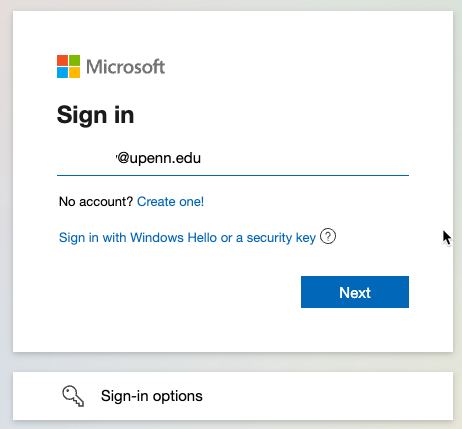
- Enter your PennO365 email address and click Next.
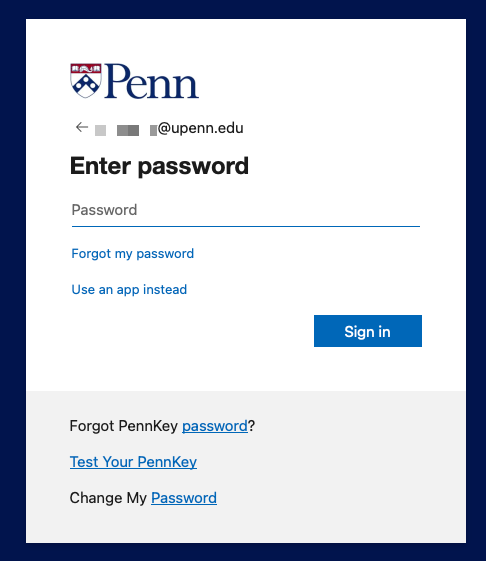
- Enter your password when prompted and click Sign in.
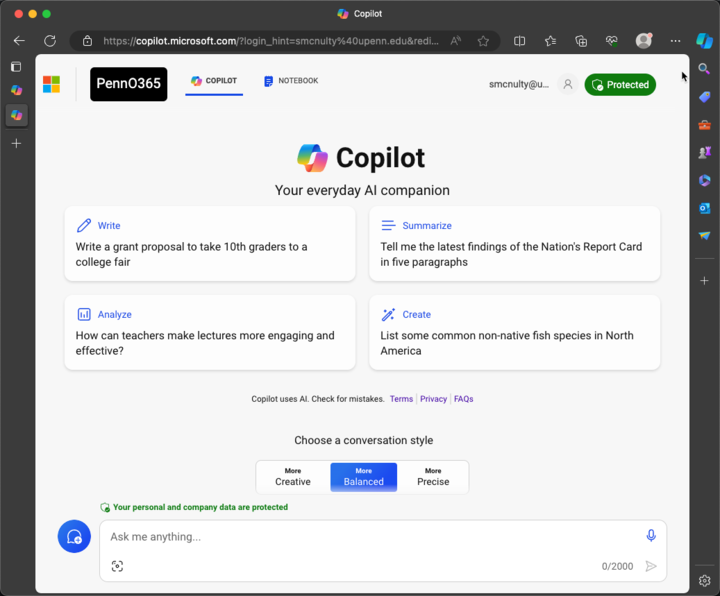
- You can now use Copilot for the Web and have your data protected, as noted by the green Protected shield icon on the upper right.
For more information about launching and using Copilot, refer to Microsoft's Copilot support page.
Confirming your Copilot Session Is Protected
To use the protected version of Copilot for the Web, which ensures your data is covered by the University's data protection agreements with Microsoft, you must be logged in to Copilot for the Web with your PennO365 account.
There are two easy ways to confirm this on the Copilot for the Web homepage:
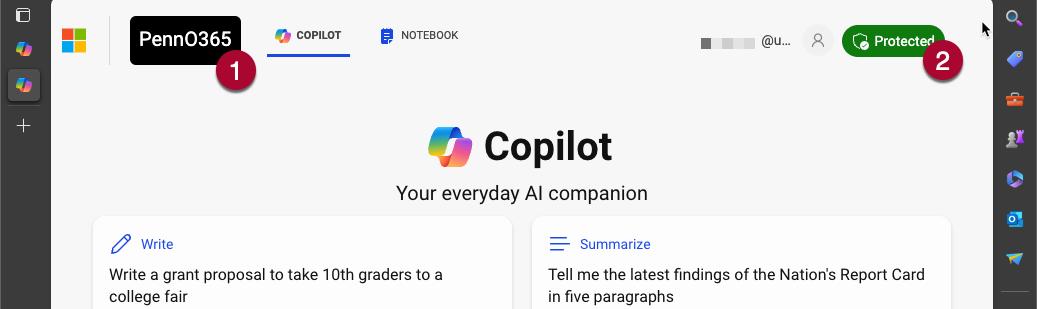
- The black PennO365 logo will appear on the left-hand side of the screen.
- A green Protected shield icon will be displayed on the right-hand side of the screen.
If you don't see either, please follow the instructions above to log in with your PennO365 account.
0 Comments